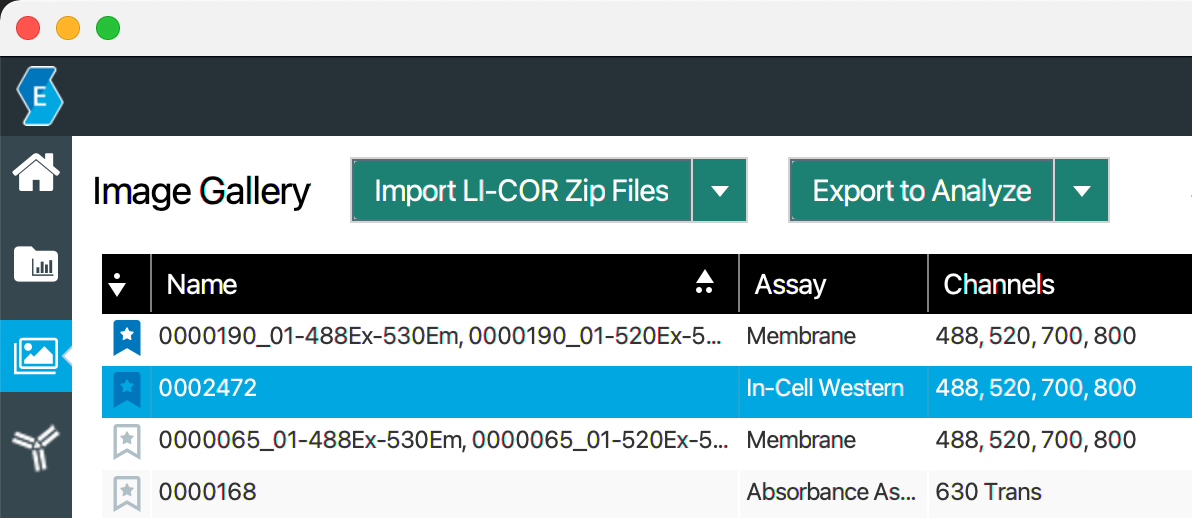
Image Gallery
The Image Gallery  contains a list of images in the current Empiria Studio Data Folder.
-
Images are grouped into image Acquisitions. An image Acquisition is a group of images for different channels that were imaged at the same time in the same Scan Area.
-
When you start an Experiment workflow in Empiria Studio, you choose what to analyze from among the images or image Acquisitions in the Image Gallery. Depending on the Experiment type, you will analyze one image, multiple images, one image Acquisition, or multiple image Acquisitions.
Organize Image Gallery Rows and Columns
- Customize which columns are included in the table by clicking in the table and selecting the columns you want to include.
- Click and drag column headers to rearrange the order of columns in the table.
Sort
Click a column header to sort the data in the table by the values in that column.
-
Click a column a second time to reverse the sort order.
-
You can sort by more than one column. Hold SHIFT while clicking a second column header to sort by the second column. The column with the first sort priority will be indicated with a triangle and circle icon with a single circle (e.g.
 ). The column with the second sort priority will be indicated with a triangle and circle icon with two circles (e.g.
 ).
-
More than two sort levels are possible.
Search
If you type text into the Search field, the Image Gallery will only show image Acquisitions that contain the text in one of the columns.
Delete Image Acquisitions
Click next to an image Acquisition to delete the image Acquisition. If the Acquisition contains an image(s) that is part of an Experiment, the Experiment must be deleted before the Acquisition can be deleted.
Mark Favorite Image Acquisitions
You can designate an Acquisition as a "favorite" to make the Acquisition easier to find when the list of Acquisitions becomes long.
-
In the Image Gallery, click the favorite icon next to an Acquisition to designate it as a favorite.
-
The filled-in favorites icon () indicates an Acquisition that has been marked as a favorite.
-
Click the column header above the favorites column to group your favorite Acquisitions together. If you do not see your favorite Acquisitions, they have probably been grouped at the bottom of the list. Click the column header above the favorites column again to group favorite Acquisitions at the top of the list. A sort icon (such as
 or
 ) indicates that the favorites column has been sorted with favorites at the bottom or favorites at the top. See Sort for more information about sorting in the Image Gallery.